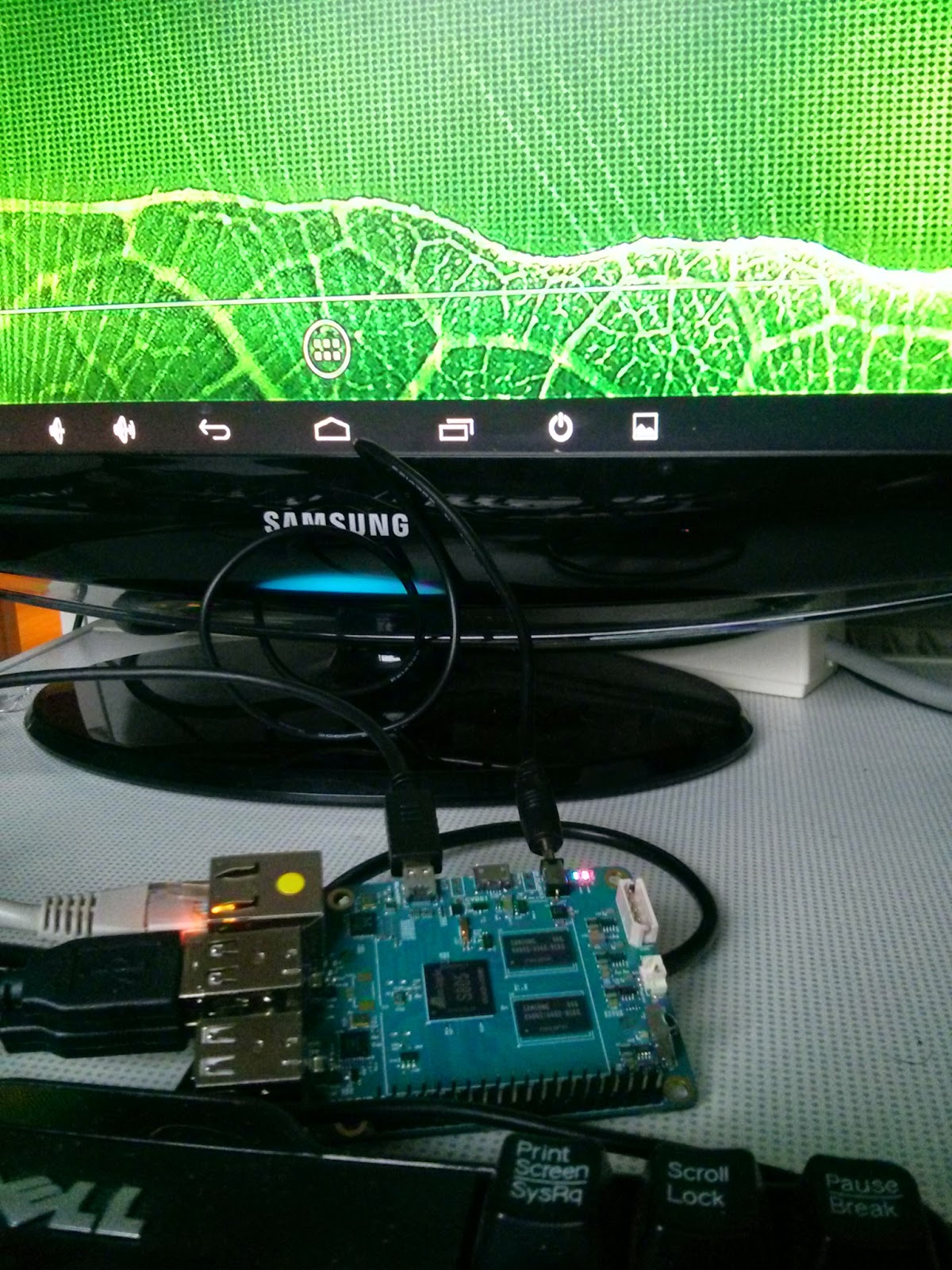
torstai 30. huhtikuuta 2015

How to get started with Windows 10 IoT Core Preview for Raspberry Pi 2

Raspberry Pi is a tiny credit card sized PC. It's an SBC (=Single Board Computer). Microsoft announced earlier they were going to support Raspi2 by unveiling Windows 10 for IoT (= Internet of Things.

Ok. You want to run Windows 10 on Raspberry Pi 2? Let's give it a go! How to get started? Read on:

Links:


Raspberry Pi b (1st gen)

Raspberry Pi 2 (2nd gen)

How to build your own robot (Windows 10 and
Raspberry Pi 2 needed)


sunnuntai 26. huhtikuuta 2015

Run LibreOffice from USB stick

Portableapps.com is a web address which offers loads and loads of applications which you install on your USB stick and run them from there. You can choose between wide variety of apps. Remember, it's Windows only.

I decided to give portableapps a go and downloaded LibreOffice. Install went just fine. All you need to remember is to change the install path so that it points to your USB stick. Have some coffee until install is ready.

Keep in mind LibreOffice driven via USB2.0 is not that fast. However it's very helpful in a situation when no proprietary Office (Microsoft...) is available. So LibreOffice on USB stick is IMO worth trying.

LibreOffice's Writer driven from USB stick

lauantai 25. huhtikuuta 2015

Debian Linux "Jessie" - a modern OS for an older PC

There is an old HP laptop lying under my table, I think. The specs of that PC go like this:

  • 512 MB RAM
  • 30 GB HardDisk
  • ~ 15" screen with 1024*768 resolution
  • Some sort of soundcard
  • No wifi (if I remember right...)
  • Internal CDROM-station
  • No USB boot option in BIOS
  • Floppy drive (!)

Which operating system is able to run on hardware like that? The right answer is Debian Linux which is, at the moment, getting a bigger update called "Jessie".

Think about it! A PC from year 2003 is able to run a modern OS! Of course no online video watching is possible. So there are some limitations. However light web surfing is there. I can read news, send email and update my blog! That, I think, is amazing!

How does Debian do the trick? Well, only the most necessary processes are started when PC boots. In addition graphical user interface is as light as possible (for example LXDE). I really like this kind of approach.

Too many old PC's are simply forgotten nowadays. With Debian Linux "Jessie" inside these rusty computers will live another five years!

One more thing. Since there is no way to boot from USB stick, BIOS doesn't support it, I have to burn Jessie on CD...

Links:

http://cdimage.debian.org/cdimage/jessie_di_rc3/i386/iso-cd/

LXDE

sunnuntai 19. huhtikuuta 2015

Name any OS - Nexus 4 runs (almost) them all

Nexus 4 is able to run many Linux based operating systems. So far my phone has become familiar with Android, Cyanogen Mod, Firefox OS and Ubuntu Touch. Next in line is Sailfish OS (from a Finnish company Jolla) which I ran on Nexus 7 earlier this year.

Of all those operating systems Firefox OS is almost useless since it's IMO not stable enough for daily use. Cyanogen Mod will get support from Microsoft. So CM is a "no-go" in the future (you know, it's M$!). Android 6 (not avilable yet) might not run on Nexus 4 anymore. That leaves me only two OSs; Ubuntu Touch and Sailfish OS. I'd prefer the Finnish one but both will do.

There is however one OS which i'd like to see on Nexus 4. That is Debian. There is even a web page dedicated for Debian mobile: https://wiki.debian.org/Mobile . Let's hope my dream comes true one day! Maybe many Nexus 4 users already run Debian. I only need to find those web sites which are telling how to do the trick. Why Debian? It's free software from head to toe.

Firefox OS on Nexus 4 on the right

Cyanogen Mod 12

Android 5 (Lollipop)

Ubuntu Touch

Sailfish OS on Nexus 7 wifi (2012) -tablet


Running Ubuntu Touch and Android 5 on Nexus 4

Let's put it short: I got dual boot working on Nexus 4. When powering up my phone a menu shows up and let's me choose between Ubuntu Touch and Android 5. In addition my Nexus only has 8 GB memory. Guess what? Both operating systems fitted in! How nice!

Installing procedure is, in my opinion, difficult for beginners. First you need to know how to use Linux (in this case Ubuntu). Next, you have to unlock and root your Nexus 4. Finally MultiROM Manager and Ubuntu Touch are installed. So you'd better be familiar with Nexus flashing techniques in order to succeed.

It's way too hard for me to write about every single detail that happened during installation. In case you are still interested, please follow this external link. Read the instructions carefully and take the steps needed to make your Nexus 4 dual boot two operating systems.

Haha! Brothers!

Installation going on!

Touchable dual boot menu shows up when powering up!

Ubuntu Touch up and running!

perjantai 17. huhtikuuta 2015

A Chrome extension let's you switch from one user agent to another in just a moment

An extension called "User-Agent Switcher for Chrome" makes it easy for Chrome Web Browser users to switch from one user agent to another.

In other words your Chrome can pretend to be IE or Firefox. Android browser, Windows Phone IE and iPhone/iPad Safari are supported as well.

Why would you change your user agent settings in Chrome? Well, for example you might need a quick check to see how your mobile web site looks like.


To get the latest Flash for Ubuntu - simply install Chrome Web Browser

If you don't want to spend much time configuring your Ubuntu and need the latest Flash plugin all you need to do is to point your browser (Firefox?) to this address https://www.google.fi/chrome/browser/desktop/ and install Chrome Web Browser.

Chrome has Flash pre-installed inside and you never need to take care of Flash updates again. Chrome does it for you. Only keep using Chrome.


How to view 3D files with Chromebook

Here I am in a public library and soon starting the printing of a case for my Odroid C1 computer. This place is situated in Helsinki Finland and is called "Kaupunkiverstas" (= city workshop) which you can find on Facebook.

Thingiverse is a service which offers ready-drawn shapes and figures. The best thing is they are all CC-licensed. This is what I was looking for: http://www.thingiverse.com/thing:601316

Before the actual printing I wanted to view the case on Chromebook. Two extensions were needed and are found in Chrome Web Store:

  1. 3DView
  2. Click to open 3D

Next, stl-files were downloaded from Thingiverse. Once .stl-file was saved it opened automatically.

Tip: if .stl-file doesn't open automatically, right-click it on the web page and choose "Click to open 3D" and "Open in 3DView".

Install 3DView extension

Install Click to open 3D extension

Download .stl-file

.stl-file opened

This is the case in this case ;P!

keskiviikko 15. huhtikuuta 2015

We did have IoT back then - without cloud services though

Back in the eighties it was possible to write code with language like BASIC and run it on home computers like Commodore 64 or Sinclair Spectrum. Those software and hardware platforms were not created only for fun. You could write code which controlled the heating of your house. Those were the days! Were we living the times of IoT (=Internet of Things) back then?

The difference between now and then, I guess, has to do with the Internet. Back in the old days there were not that many solutions when you wanted to save your information. Nowadays it's possible to send all the information to a cloud based server. A credit card sized computer is able to take care of it all. How nice! On the other hand one must remember security issues concerning cloud services.

Many of us started sort of IoT long time ago. Now it's time to take it further with computers like Raspberry Pi and Odroid C1.

My Commodore 64

My Odroid C1

Office Lens - how to get started

Office Lens lets you scan your receipts and save them to Microsoft's OneDrive. To get started follow this tutorial from CNET: http://www.cnet.com/how-to/getting-started-with-microsoft-office-lens/

Kong - create your own selfie GIF animation

Why on earth Kong is not available in Finland? With Kong anyone can publish selfies which are alive - they are in fact GIFs. I want my Kong! And I want it now!

No Kong in Finland just yet!

sunnuntai 5. huhtikuuta 2015

Orbot and Orweb for Android make you anonymous on the Internet

My tablet Nexus 7 wifi (2012) has seen many operating systems - not just Android but Sailfish OS from Jolla and Cyanogen Mod as well. Click those links and read my earlier blogposts.

Every time I browse the web with my Desktop Computer companies like Google, Facebook etc know what I'm doing. They are following me. So how to prevent that? In addition, how to make that happen when running Cyanogen Mod which is a free version of Android? Follow these steps:
  • Install F-droid
    • It's an app store with free software
    • Google Play is nice but many apps are proprietary so that the source code is not available
  • Root your Cyanogen Mod
    • Tap seven times the build number (Settings, About phone/tablet)
    • Developer options are now available (Go back one step in Settings)
    • In Developer options tap Root rights, Apps and ADB
  • Find Orbot and Orweb in F-droid store and install them
  • Start Orbot and grant it the root access
    • Wait until Orbot tells you are anonymous
  • Start Orweb (tap the globe in the top right corner in Orbot)
    • Hope for the best! Orweb informs you if you are browsing the web anonymously
    • Go through Settings again in Orbot if Orweb is not in anonymous mode
From now on my Nexus 7 wifi (2012) can join the Internet via a hidden proxy. I can't make any searches with Google or DuckDuckGo. Those search engines don't let me in. I can't read my Gmail with Orweb browser. Google immediately sends me an email and warns me saying something strange is going on and someone is trying to access my account. However from now on advertisers don't know who I am even though they are following me. My IP-address leads to an anonymous proxy server advertisers hate.

Am I using "the dark side of the Internet"? Maybe. My Nexus 7 wifi (2012) is now running free software (Cyanogen Mod 12 + apps from F-droid) and I can surf the net anonymously. I've reached my goal.


Orbot running...

It's not the original Tor browser.
However Orweb browser is ok.

There is no advertisement, when
browsing via Tor. See that circle.
that's where the ad usually resides.


perjantai 3. huhtikuuta 2015

ARC Welder lets you run Android apps on Desktop

Android apps on iMac?

Would you like to run your favourite Android apps on your PC or Mac? Try ARC Welder extension for Chrome browser. There is now Instagram on my iMac Desktop. I can upload a bunch of pictures in no time!

Installation of the required software

You can find Chrome browser easily by using any search machine. So first off, install Chrome. Next move to Chrome Web Store and install ARC Welder - a tool (it's actually an extension for Chrome) that helps you run Android apps on your Desktop. The third step is a bit challenging. Try to find the .apk-package of your favourite Android app. In my case I wanted to install Instagram. Off I went and searched for instagram.blah.blah.apk. There were many pages that took me to the wrong direction! Finally .apk was waiting for setup on my Desktop.

Installation of the .apk-package

Next you want to install your app (= .apk-package). Point "+ Add your APK" (see picture below). Now it's time to cross fingers. Not all Android apps work :(.

Find extensions inside Chrome browser

Instagram might open automatically when using for the first time. Use the following web address when you want to run your favourite Android app next time; chrome://extensions/ . Take a look at extensions and try to find your app and a link "Start" that let's you run your app. In addition ARC Welder is there among other extensions.

That's it?

Yup. Hope this helps someone out there.

Install of  a .apk-package


Instagram running on my iMac Desktop


You can find your app in Chrome Launcher
as well as in extensions


Instagram runs just fine on my Samsung Chromebook as well!

keskiviikko 1. huhtikuuta 2015

Chromebit - a stick with Chrome OS for 100 $

Chromebit is a stick with Google's Chrome OS inside and with two ports; HDMI and USB. The good news is: any HDMI-equipped monitor (for example TVs) will become a computer. In addition Chrome OS gets automatic updates.

I've had an old Samsung Chromebook for many years (see the picture below). During that time there has been absolutely no problem with the hard- or software. Chromebook just works. I'm expecting the same bahaviour with Chromebit.

I'm definitely going to get one of those sticks! If they sell it for 100 $ as they promise, it's a bargain! Of course you need to power up the stick, get an external USB hub if you want to use wires etc. However, Chromebit makes many Desktop computers useless. If you can make it browser only, there's no coming back!

I will keep my Chromebook and get Chromebit beside

GNU GPL -lisenssi lopetetaan kannattamattomana, Apple ja Microsoft mielissään

GNU GPL -lisenssi ja sen kaikki versiot lopetetaan kannattomattomina. Koodaajien mukaan vapaus ja vastuu eivät ole kohdanneet oikealla tavalla. "Yhtään ilmaista olutta en ole nähnyt koko koodariurani aikana". Näin toteaa "old school"-koodari, joka ei halua nimeänsä julkisuuteen.

Lopettaminen tuottaa ongelman monille vapaan lähdekoodin sovelluksille. Joko ne on kokonaan poistettava markkinoilta tai siirrettävä jonkin kaupallisen lisenssin piiriin. Tieto on järkyttänyt vapaan lähdekoodin kannattajat. Japanista kerrotaan, että eräs fani oli surupäissään syönyt paperille printatun GNU GPL -lisenssin, jotta kukaan ei voisi ottaa lisenssiä fanilta pois. Suuret tekijät kuten Microsoft ja Apple ovat mielissään, sillä niiden mielestä palataan vihdoin "vanhoihin kunnon aikoihin".

Lisätietoja asiaan liittyen löytyy tästä linkistä.

maanantai 30. maaliskuuta 2015

Ubuntu on Odroid C1 working - finally!

Read on how I got Ubuntu and Odroid C1 co-operate. These are the steps taken:

  • Download Ubuntu 14.04.2lts here. It's a fast download although the mirror is unofficial.
  • Extract the xz-package in Linux with unxz. In case there is no unxz in your Linux, try to find xz utils in your Linux repository and install the package.
  • Write the .img-file with either Win32DiskImager (Windows) or command dd (Linux). Make sure the image is correctly written. pay attention to this phase!
  • Open a file boot.ini which you can find on microSD card in Boot partition. You can use any text editor for editing. Choose one of the resolution by deleting hashtag in the beginning of the line. Make sure only one resolution is chosen at a time! Save boot.ini.
  • Place microSD card in your Odroid C1 and pray! In my case my monitor only does 1440*900. In addition I was using HDMI-VGA -adapter.

Now I have both Android (read my earlier blogpost) and Ubuntu running on Odroid C1. Those two operating systems are the the ones Hardkernel is recommending. However there are many other unofficial OS's to choose from in case you want to give them a try.

Ubuntu on Odroid C1 feels quick!

I need a real time clock!
There is a port for that on Odroid C1

lauantai 28. maaliskuuta 2015

One down - Android now running on my Odroid C1

Ubuntu on Odroid C1? Not just yet! Meanwhile I've got another story to tell. Instead of Ubuntu Android showed up and stole all my attention.

I was worried if my Odroid C1 was broken. Many other people have had problems with power supply. In addition I was not sure if microSD card was ok and properly written. So many questions so little time!

Thank heavens I already knew how to set up Raspberry Pi and BeagleBone Black. Of those devices Raspi is the easier one while the latter turn out a challenge (at least for me :D). I've read so many horror stories telling how things can go wrong with Odroid C1.

Android 4.4.2 is available here: http://mirror.golddroid.com/ . It's an unofficial site but it's fast. The package "Selfinstall" means you can download and write the image on a microSD card. I decided to give "selfinstall" a go. Linux-tools like unxz and dd are those which Hardkernel, the manufacturer of Odroid C1, recommends. First off, extract the image and after that write it on a microSC card. You can find many examples on the Internet concerning the commands unxz and dd.

Place microSD card on bottom of Odroid C1. If you don't know how take a look at the videos you can find in YouTube. For example this one: https://youtu.be/DvJSCzIGr1E

My monitor's highest resolution is 1440*900. I wonder if that has to do with Ubuntu which was not willing to show up? Is Ubuntu trying full HD as default and nothing else? I don't know just yet. Well, Android started to load. There was a red LED on and a blue one blinking. After a while Android was there on screen. Android... didn't look that good. But I guess it never does on bigger screens. I'm happy I got Odroid C1 up and running. Now I know it's not broken.

What next? I'd like to purchase a 4 GB eMMC-memory module which is faster than microSD cards but slower than SSDs. Ubuntu Linux is also on the list all the time. Odroid C1 is faster SBC (= Single Board Computer) than Raspberry Pi. I'd like to enjoy the speed of Odroid C1! In addition a full HD monitor is needed so I have to try to find one!


Odroid C1 was connected to router via RJ45

 Video cable: The upper port is microHDMI (type D)
and the lower HDMI 

Make sure the power supply works!

In the end of the day - Android!

perjantai 27. maaliskuuta 2015

How to get started with Odroid C1

What's an Odroid C1?

Odroid C1 is an SBC (=Single Board Computer) similar to Raspberry Pi. If you know how to setup Raspi chances are you'll do just fine with Odroid C1 as well.

Get the image of the operating system and write it on an SD card

There are many web sites where you can download operating systems for Odroid C1. I'd suggest trusting official sites only. Try this one: http://odroid.com/dokuwiki/doku.php?id=en:odroid-c1 . Android and Ubuntu Linux are the official ones while many unofficial Linuxes are available as well. An 8 GB microSD card is needed. 4 GB is not enough.

Make sure you extract the image by using unzx (on Linux) or other proper software. Otherwise you might end up using corrupted image which doesn't work. In addition write the image on SD card using the Linux command dd or Win32DiskImager (on Windows). There is also the possibility to use eMMC memory which is faster than an SD card. Unfortunately I don't own eMMC module so that issue is beyond this blog post.

Power

You can't power up Odroid C1 using USB ports. A power with the following specs is needed; DC 5V 2A. Fortunately they are not that expensive. You'd better take Odroid C1 with you to the store when choosing the right power device. The head of the jack is very tiny and circle shaped.

MicroHDMI

Find a microHDMI (type D)-HDMI -cable or microHDMI-VGA respectively. Not all cables work out-of-the-box. Read how I got Raspberry Pi with Hewlett-Packard HDMI-VGA adapter working.

LAN/Wifi

There is a built-in RJ45 port on board. If you own a wifi USB adapter or two which work on Raspberry Pi and Raspbian, give those a try on Odroid C1. Keep in mind USB ports might not be powerful enough. Additional USB hub with own power is not a bad idea.

That's it then?

Well, I've gotten this far. Stay tuned for more information!

My Odroid C1 at home ready for some action!

keskiviikko 25. maaliskuuta 2015

It's time for Google to pay

No rumours coming ;P! It's just that I've earned almost 70 euros via clicks of the ads you people out there have made! Every time you earn over 70 euros you have a chance to receive money. So it's time for Google to pay. Well, it'll take at least until May before money arrives.

In Finland where I live you have to tell the taxman that you've earned money via your blog. I'm going to print the receipt from Google and pass it to the taxman.

My family wants me to take them out for a dinner. Ok. I promise. Last time we went to Japanese restaurant.

sunnuntai 22. maaliskuuta 2015

You can switch off Secure Boot also in the future - thank heavens we have Windows 7!

If you buy a new PC with Windows 8.1 pre-installed, you might be surprised to hear it's not that easy to install Linux alongside Windows. There is this new kind of BIOS called UEFI with Secure Boot feature which makes things complicated.

Some even say it will be impossible to install Linux on PC's with UEFI and Secure boot feature. You see, it's up to manufacturers whether they let you switch off/on Secure Boot. In other words: If you can't disable Secure Boot, you can't install Linux. Well, I'm not 100 % sure about that though.

However there is one thing that makes things straightforward. Here it comes: Windows 7 will be around for the next five years. During that time especially enterprises will be buying PC's and installing - Windows 7! IMO most of the manufacturers will leave UEFI open so that it's possible to switch Secure Boot off. Windows 7 will operate just fine if the good old BIOS is there. In case of Secure Boot switch it off and install Windows 7.

You do want to run Ubuntu on an x86-tablet, dont' you?