sunnuntai 13. maaliskuuta 2016

It's time to shout it out loud - my Nexus 4 phone running Ubuntu Touch is my PC!

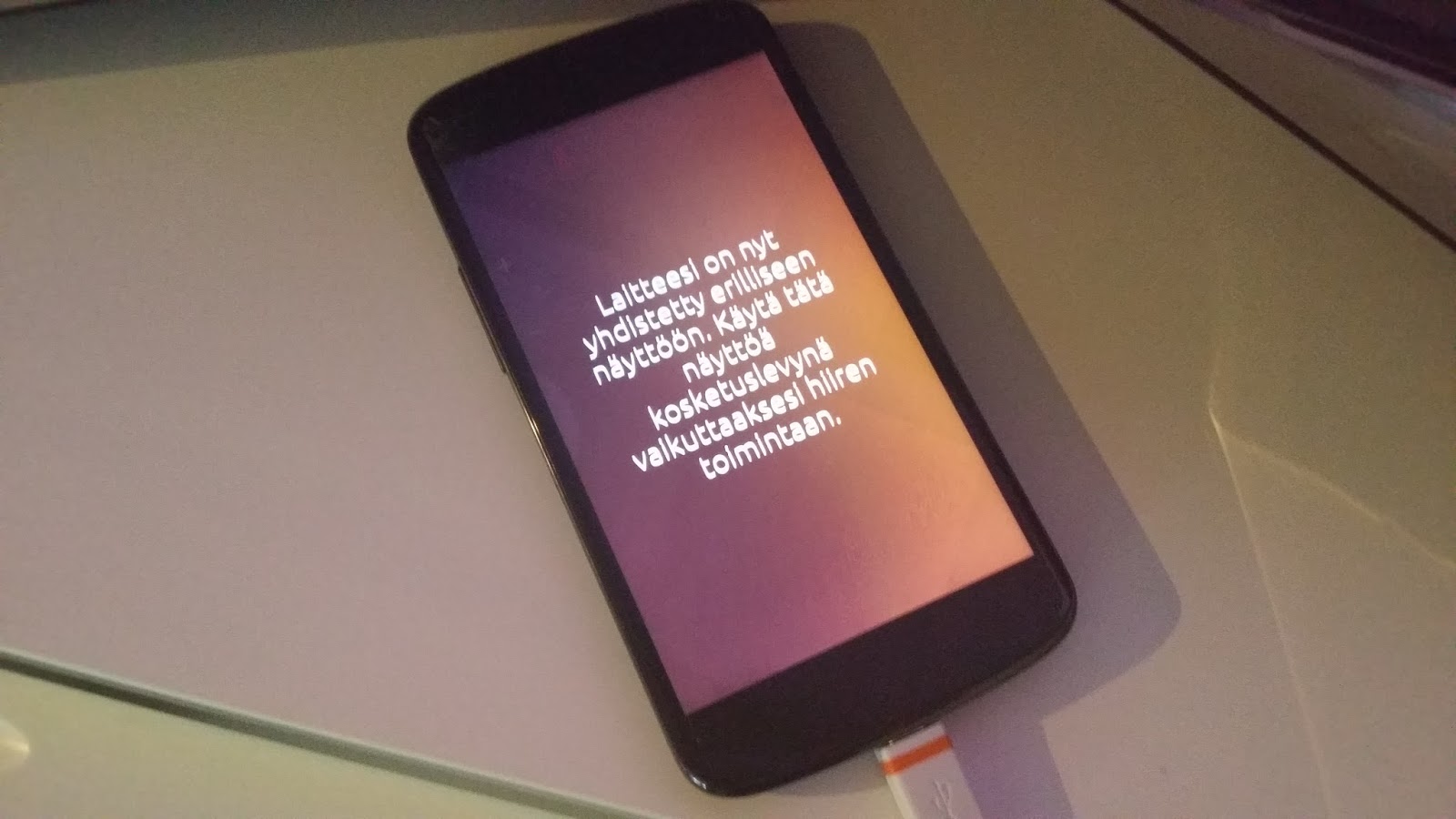
Ok, folks. I think, it's time to celebrate. My Nexus 4 is finally running Ubuntu Touch on a full HD screen via Slimport adapter. In addition apps are windowed like in an operating system running on a PC. It's time to shout it out loud: My Nexus 4 is my PC!

Ok, there are still many features missing; I have no bluetooth mouse, there are no X.org apps (easily) available just yet, special characters of my bluetooth keyboard (i.e. åäö) are not showing. However, those downsides are not taking me down today!

How did all that install go? You can read part of how things went in my earlier blogpost: http://sakarinkurssit.blogspot.fi/2016/02/ubuntu-convergence-turn-your-nexus-4.html

At the moment I'm too exhausted (and happy on the other hand) to write all that happened today but promise to come back! Stay tuned!

Apps are windowed when using bluetooth keyboard and/or mouse

It's a genuine Ubuntu! I guess it's Ubuntu Touch, though

So lucky I found an inexpensive Slimport adapter!

torstai 10. maaliskuuta 2016

No CyanogenMod 14 (i.e. Android N) for Nexus 4? My plan B is SailfishOS!

Google Nexus 4 phone didn't officially receive Android 6 update some time ago. However CyanogenMod 13 filled that gap.

I was living happily ever after until yesterday. Google released Android N preview version. Naturally only the latest Google Nexus phones are among the supported ones.

Now I'm thinking if Nexus 4 ever gets CyanogenMod 14. Well, it's too early to say. It might or might not happen. We'll see.

In case no CyanogenMod 14 show up I can live with that. However I have plan B. Nexus 4 is one of those very versatile phones which can run multiple operating systems. In addition, there is even a chance to build a multi-boot menu with MultiROM tool. I've had four operating systems installed at the same time; Firefox OS, Android 5, CyanogenMod 12 and Ubuntu Touch.

So, what is my plan B? SailfishOS - a Finnish OS! I haven't tested it yet. It might be a bit tricky to install but it's certainly worth trying. SailfishOS is even able to to run Android apps so why not give it a go!

Nexus 4 running Ubuntu Touch

keskiviikko 9. maaliskuuta 2016

Testing Microsoft Office Mix - making PowerPoint interactive

Microsoft Office Mix is an add-on for PowerPoint. With Mix you can add polls and quizzes to your slideshow. I absolutely love this feature. Downside is your slideshow won't work offline but has to be uploaded to Microsoft server.

I prepared a show with three slides. Please try it and you'll get to know how Office Mix works. If you want to try Office Mix yourself you need Office 2013 or Office365 installed on your PC. In addition Microsoft account is needed. You can download Office Mix add-on for PowerPoint here: https://mix.office.com/en-us/Home

Hint: Click lower right corner of the slideshow to enter full screen mode.

sunnuntai 6. maaliskuuta 2016

Your next Android phone could be your first Linux Desktop

Linux Desktop is not that popular among PC users. Windows and OS X from Apple rule. Linux share of all Desktops is ~ 1 % only.

There is evidence things can change. Lets pick up four cases:
  1. MaruOS is an Android derivative which runs Android in phone and Debian Linux Desktop via slimport on any HDMI screen. You can answer calls while editing your documents with LibreOffice Writer. MaruOS is in testing phase at the moment.
  2. Ubuntu Convergence turns your phone into a PC. For the time being when using phone as a Desktop you can't make calls. I'd like to run Convergence in my Nexus 4. Read how far I got last week when testing Ubuntu Convergence.
  3. Intel has developed a prototype which can act as phone and a Debian Linux Desktop at the same time. Read more: http://www.valuewalk.com/2016/02/intel-android-phone-linux-desktop/
  4. Windows Continuum. You can pick up the latest phone from Microsoft and turn Windows phone into a Windows 10 Desktop right away! Older phones like Lumias don't have support for Continuum. You need the latest hardware and software from Microsoft.
This goes to show the future of PC will IMHO look different. PC will still live but will also take a different shape and approach. As a consumer you need to know how to flash your phone. i.e. install a modified version of Android. A lot to learn!

If you look at the numbered list above you can see Linux is mentioned three times out of four. Android and Ubuntu are based on Linux. And what's best Debian Linux is also there! So your next Android phone could be your first Linux Desktop.

Ubuntu Convergence

lauantai 5. maaliskuuta 2016

Stick to Raspbian for now if you own Raspberry Pi 3 and want to utilise built-in wifi and bluetooth

Raspbian is the best choice for a brand new Raspberry Pi 3 SBC (Single Board Computer). How come? Those built-in new features wifi and bluetooth are supported out-of-the-box in Raspbian.

What if you want to run other Linux like Ubuntu? As far as I know Raspi 3 built-in wifi and bluetooth are not fully supported just yet. However, Ubuntu 16.04 is not that far from final release (end of April 2016). By then at least Ubuntu will be offering drivers for new Raspi 3. Other distributions follow.

Raspberry Pi 3 has built-in wifi and bluetooth

perjantai 4. maaliskuuta 2016

Inexpensive SBCs are slowly but surely moving towards 64-bit world

SBCs (Single Board Computers) are a branch of PCs. At the moment these little computers are a kind of "new apps" like Microsoft puts it. IoT industry is hot and SBCs are the basis of that scene. No wonder SBCs sell millions.

So far, Raspberry Pi and Odroid C1 have been running in 32-bit mode. This is changing rapidly. Raspberry Pi 3 was introduced in the beginning of March 2016. It has 64-bit ARM-based processor onboard. You can still purchase Raspi 3 for 35 $. What a bargain! In addition, a rival Odroid C2 is also out! Five bucks more expensive Odroid C2 has 2 GB of RAM and 64-bit processor.

Why is 64-bit ARM so important? There is one well-known barrier; 4 GB of RAM which is maximum for 32-bit systems. But isn't there only 1 GB RAM in Raspi? True. However, things change. One day you might be running a laptop like NexDeck with Raspberry Pi 3 attached. You'll be needing all the power 64-bit ARM has to offer. With 2 GB or more RAM Raspberry Pi 4 or 5 can replace your existing PC.

But will that new hardware take us to the 64-bit world? No. Software is still 32-bit. I takes some time before we can download different ISO-images for older and the latest Raspi computers. Meanwhile the one and only Raspbian image there is takes care of all the hardware generations of Raspi computers. I like that. What comes to Odroid, I only own C1 which is 32-bit. However Odroid C2 will sooner or later run 64-bit Linux. No doubt about it.

Raspberry Pi 3

keskiviikko 2. maaliskuuta 2016

Raspberry Pi 3 - do you really need a 2,5 A power supply?

Short answer is: not necessarily.

RaspberryPi.org puts it this way: "We’re recommending a 2.5A adapter if you want to connect power-hungry USB devices to the Raspberry Pi".

I decided a power supply with 5 V and 2.0 A has to do since that's the most powerful power I own. Only keyboard and mouse are attached. And yes, no need to find wifi dongle anymore!

Raspi 3 booted and is running Raspbian at the moment. I think power supply with 5 V and 2,0 A is enough for now.

Raspi 3 has built-in wifi!

Raspberry Pi 3 arrived - thank you Webhallen

Wow! That was quick! It only took two days for Webhallen to deliver Raspberry Pi 3 single board computer!

There is good...

  • No need to find USB wifi dongles anymore - wifi is built-in!
  • In addition, Bluetooth is on board as well.

...and bad:

  • 2,5 A power is required. I don't have one at the moment :/ .

Stay tuned for more. Raspi 3 arrived only an hour ago...

Thank you Webhallen for a quick (two days) delivery!

sunnuntai 28. helmikuuta 2016

Ubuntu Convergence - turn your Nexus 4 into a PC

My earlier blogpost had to with Maru OS which turns a Nexus 5 phone into a PC. With Maru OS you can run Android-based phone apps and Debian Linux-based Desktop apps at he same time. Maru OS is in private testing at the moment as far as I know.

Ubuntu Linux (and Canonical Ltd) has the same approach as Maru OS. I guess Ubuntu Convergence has been in public longer period of time than Maru OS. The downside compared with Maru OS is you can't make phone calls while using your phone as a PC. That, I think, is not that bad as I hate phone calls which break working day.

Ok, there is one more player in the market. Microsoft already has their Continuum out there. If you are interested, follow the link and read more. The basic idea is the same as with Maru OS and Ubuntu Convergence.

---

My (Ubuntu Convergence) tests resulted today a TV screen filled with Ubuntu Desktop. I'm pleased since this I didn't know when woke up. In life you never know what comes across. So, what happened?

  • I had installed Ubuntu Touch alongside Android using MultiROM and TWRP on my Nexus 4 many times before. This time install channel ubuntu-touch/rc-proposed/ubuntu was chosen as it is the right one for the purpose of Convergence... as far as I know, not 100 % sure though.
  • With help from Sturmfluts blog I managed to attach and boot HDMI-cable, Slimport adapter and Nexus 4 the right way in my TV (the only full HD monitor I have!).
  • And voilà! Suddenly Ubuntu Touch appeared on TV. The position of Desktop on TV is far from perfect, but that doesn't matter. Fine tuned later! (The idea is to offer a genuine Ubuntu with windowed apps on bigger screen).

What is going to happen next? Well, a bluetooth keyboard and mouse are needed. Those I don't own. After that some tuning so that the whole Unity Desktop can be seen. And that's it! If I make it to the end I can start to use my Nexus 4 as a Desktop Linux PC! Meanwhile, take a look at LibreOffice Running on an Ubuntu Phone (The Verge).


lauantai 27. helmikuuta 2016

Maru OS turns Nexus 5 into a Desktop Linux computer

Maru OS is a custom version of Android which lets you run Android on your Nexus 5 and at the same time Linux on your HDMI monitor via Slimport adapter. Sadly enough, I happen to own Nexus 4 only. No screenshot, no go at the moment, sorry. Let's hope Maru OS will support more phone models in the future.

While waiting off I went and purchased a Slimport adapter (see pictures below) at Verkkokauppa.com outlet for 12 €. At the moment it's possible to mirror the screen of my phone and use TV as a second monitor. What did I do? I attached a HDMI cable to my TV. Next Slimport adapter to HDMI cable and lastly Nexus 4 to Slimport adapters micro USB port. Suddenly the screen of my phone showed up on TV. There was no need to change any settings in Android.

Why is Maru OS so important and interesting project? Because of Microsoft. They have their Continuum going on. It's possible to turn Windows phone into PC. With help from Maru OS assorted Android phones will be able to do the same.

In case you got interested, please read through how to flash your phone. All the information you have will be wiped. Remember you are doing it at your own risk.

Mirroring

Slimport adapter ends

Slimport adapter has an extra port for power,
however I didn't need it

An old Amstrad PPC512 - you can charge it's batteries with solar panel

Picture this:

  • Amstrad PPC512 portable PC
  • NEC V30 processor
  • One 720 KB floppy drive
  • 512 KB of RAM
  • MS DOS 3.3 on one floppy disk
    • Maybe FreeDOS is an option?
  • LCD screen (no backlit)
  • Full size keyboard
  • No hard disk

What can you do with that sort of hardware and software? Well, if you never had such a PC back then, it might be hard to imagine. As a former owner of Toshiba 1000 (I think it was 1000...) IMHO there is a lot you can do with hardware like that!

In addition, best is yet to come! As Amstrad has an LCD with no backlit, not that much power is needed to run this beast! You can use ten C-size alkaline batteries (10 x 1.5v). If you happen to own a solar panel chances are you can charge batteries over and over again. This goes to show Amstrad is a true portable off-grid computer... at least during the summertime :D.

I can't fire up my Amstrad just yet. Floppy drive is broken (look at the pic below). It needs to be replaced. No substitute around, I'm afraid. Once Amstrad is back in business I let you know how it is doing.

Replacing 720 KB floppy drive

There is room and wires for another floppy drive, hmm...

torstai 25. helmikuuta 2016

Raspberry Pi Zero got connected via an old homepna USB adapter

Raspberry Pi Zero is a really tiny computer with ARM-based processor and 512 MB RAM. But how to get connected? You probably  want to update your operating system (in my case Raspbian) and surf via web browser on the Internet.

My solution is an old homepna adapter from A-Link. I found it at local flea market with price tag 1 €. The good thing is all I need to do is to attach adapter and start to use the net. Raspbian is connected immediately. Downside is the size of the adapter. However once connected you can fetch drivers for another adapter like A-Link USB54 (see picture below). After that Raspi Zero is not wired but working via wifi and can be placed anywhere.

It's a big one... but it works out-of-the-box

It's an A-Link adapter

Wireless adapter from A-Link

keskiviikko 24. helmikuuta 2016

My Raspberry Pi Zero arrived - finally!

At last! Raspberry Pi Zero has arrived. I received mine today. Only an hour or two from unboxing Zero was running the latest Raspbian. Here's my checklist for the first time boot:
  • Download, unzip and burn the latest Raspbian on an 8 GB micro SD card
    • In Windows use for example Win32DiskImager as admin
    • In Linux use dd as root
  • Find the following hardware:
    • Mini HDMI - HDMI cable 
    • Micro USB charger
    • OTG cable (micro USB - female USB)
    • A hub with at least two free ports
    • Keyboard and mouse
  • Combine hardware and fire up Raspi Zero!
  • Run raspi-config as root and fine tune Raspbian
    • Define for example your screen memory
    • Change keyboard layout if necessary
  • Wait a minute! No access to Internet? Hold your horses! There is a workaround in the back of my mind. I will write about it later.
Getting Raspberry Pi Zero up and running is easy if you are familiar with earlier versions of Raspi computers. Please pay attention to the fact that Zero is not as powerful as Raspberry Pi 2.

I'll be back with more information later! Stay tuned for more!

Raspi Zero is the tiniest computer I've ever had

3D-printed chassis for Raspi Zero

Raspi Zero running - green LED on the left is on

sunnuntai 14. helmikuuta 2016

Two Linux boxes: an ancient PC vs Raspberry Pi - pros and cons

Oldies but goldies

I have a bunch of not old but ancient PCs lying around. One of them is AMD K6-2 with 128 MB of RAM and 6 MB HD from year ~ 1998. Since this PC is capable of running the latest Debian 8 I decided to give it a go. Old ISA network card was removed and a PCI USB card with A-Link USB wifi dongle mounted. That's how an old PC got a new life.

Will Raspberry Pi take over?

So how does Raspberry Pi, an SBC (Single Board Computer), which I like a lot compare with an old PC? Here is my list of the pros and cons:

Old PC:

Pros:

+ still going strong and running the latest Debian Linux (in command line mode only) so why buy a new PC when you can get it once and use forever!
+ hardware is well known and documented, it's easy to get help if needed, spare parts can be found
+ chassis has enough space for almost any piece of hardware
+ when PC is up and running you really can hear it!
+ not running the latest Windows ;D

Cons:

- an old PC consumes a lot of energy
- noisy (what if I had 10 of them running at the same time!?)
- chassis needs a lot of space at home
- BIOS supports booting from CDROM only

Raspberry Pi

Pros:

+ runs Raspbian Linux (i.e. Debian for Raspi)
+ it's tiny compared with an old PC and it'll get tinier (Raspi Zero!)
+ it doesn't need that much energy to run
+ no noise!
+ a lot of users on the Internet, it's easy to get help if needed
+ GPIO pins which takes computing to another level!
+ not running the latest Windows ;D

Cons:

- you only get Raspi when purchasing one, no chassis, nothing
- you can't update the hardware, 1 GB of RAM is enough!
- will Raspi run after 18 years?
- slower than your smart phone hardware, for hobby purposes only
- not replacing your present Desktop

My verdict

An old PC is like Volkswagen Beetle from the sixties - buy once keep forever! However show must go on. Raspberry Pi is my choice because we are living IoT-age. You can't place an old PC behind your flat TV, can you ;D? So, the first price goes to Raspi and not that far away behind an old PC.

My AMD K6-2 from year 1998

an old ISA NIC

Raspberry Pi 2 GPIO pins

1st generation raspi and an old Casio TV as monitor

Raspi is an SBC (Single Board Computer)


Testing ChromiumRPI 0.3 for Raspberry Pi 2

Chromium OS is like Chrome OS, you know, browser-only operating system. You must have seen Chromebooks with Chrome OS inside. From now on it's possible to turn your Raspberry Pi 2 into a "Chromium Book".

So, what is the exact difference between Chromium OS and Google Chrome OS? Let's see what Chromium OS Frequently Asked Questions has to say:
  • "Chromium OS is the open source project, used primarily by developers, with code that is available for anyone to checkout, modify, and build.
  • Google Chrome OS is the Google product that OEMs ship on Chromebooks for general consumer use." Source: https://www.chromium.org/chromium-os/chromium-os-faq
At the moment, the image of ChromiumRPI for Raspberry Pi 2 is available via the following link: 
Let's hope this project gets a proper home page in the future. I did find a Github page but I think it's not enough.

Extract the zip-package and burn the image on an SD card. If you face problems with the extension .BIN simply rename it to .IMG. Use Win32DiskImager (in Windows) or dd (in Linux).

In order to make Chromium OS work you have to download the file /etc/chrome_dev.conf from here: http://www.mediafire.com/view/3xc1rbrij0ld2f8/chrome_dev.conf. Open your File manager in Linux as root and find root partition. Then replace the old chrome_dev.conf with the one you downloaded. Handy, eh?

If you can't sign in try Control + Alt + F2. Then, login: chronos and password: chronos. Type sudo su and enter the password chronos again. Finally, type date -s “01/21/16“. 

I have no api-keys. My Gmail account won't work until I have api-keys. However,  I was able to login as guest, change language to Finnish and browse the web via ethernet.

If Chromium OS doesn't boot without errors then I suggest you wait for the next version 0.4 which will be available very soon - only a week from now.

My verdict: Let's wait a while. ChromiumRPI will get more mature in near future (version 0.4 will be released soon).


Chromium OS Desktop - looks similar to Chrome OS

Raspi 2 at work running
Chromium OS!

perjantai 12. helmikuuta 2016

How to enable Raspberry Pi experimental OpenGL driver

The latest Raspbian brings us an experimental OpenGL driver. In case you want to give it a try, do the following:

Open terminal and type in:
  • sudo raspi-config
Browse to Advanced Options -> GL Driver -> Enable. Reboot your Raspi.

Try Oolite to see OpenGL driver in action:
  • sudo apt-get install oolite
Fire up Oolite:
  • oolite &
PS Experimental OpenGL driver is for Raspi 2 only!

My Raspi2 trying OpenGL driver for the first time

sunnuntai 7. helmikuuta 2016

SBCs are for the hobbyists, not for the masses?

Single Board Computers (i.e. SBC) are very popular among hobbyists; inexpensive and versatile. There is no project which can't be done using these tiny little miracles. So why isn't everyone using SBCs?

There are many answers:

  • First off, SBCs run Linux. This is something people are not used to. Most of us own a laptop with Windows, Apple's OS X or Chrome OS from Google inside. Linux Desktop is a rarity.
  • Secondly, Raspberry Pi has done a good job and is offering not just inexpensive hardware but easily installable software. However there are manufacturers which haven't. For example Hardkernel, a company behind Odroid C1, has been competing against Raspberry Pi for some time. In the beginning there was not that stable Linux around for C1. Users trust is achieved by supporting hardware.
  • The third challenge is poor performance of the SBCs. If a computer costs 5 $ it's not as quick as your laptop. No way. The tiniest SBCs only have 512 MB of RAM. That is something we last saw ten years ago in budget laptops.
  • However, you can see things differently. Read on...
For the time being, not everyone of us is using an SBC. But things can change. 80 % of all phones and tablets run Android which has Linux in the bottom of the operating system. There you have it! Linux is already around! Why not run Android in an SBC?

In the future you might run an SBC without knowing it. It's predicted tiny computers and micro controllers will be everywhere and they will get even tinier than today. Embedded systems don't need that much memory or fancy graphical interfaces. Next time you buy a fridge there probably is an SBC inside.

We have been living the stone age of computers for the past 30-40 years. It's time to move on to the next era when not just hobbyists but all of us use SBCs daily.

My Raspberry Pi meets an old TV from Casio

lauantai 6. helmikuuta 2016

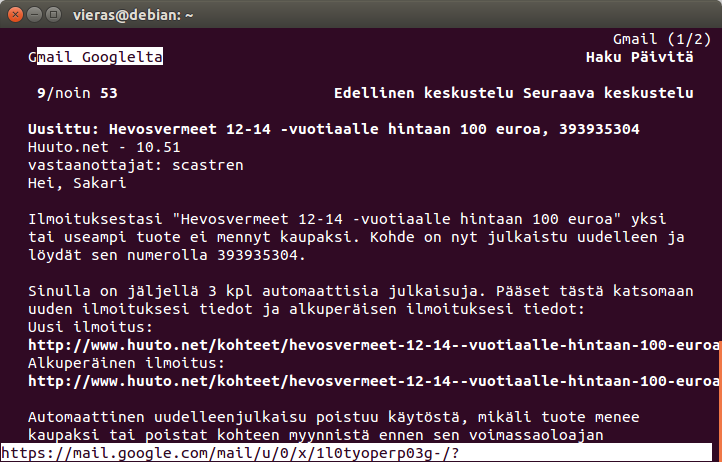
Read your Gmail messages in CLI Debian Linux with Elinks web browser

If you are one of those command line interface Debian Linux lovers and would like to read your Gmail messages why not give Elinks text-only browser a go!

Setup Elinks in Debian Linux as root:

  • apt-get install elinks

Go on as a normal user. Fire up Elinks:

  • elinks

Type the following URL:

  • m.gmail.com

Navigating in Elinks is, eh, different. First off, I advise you to calm down ;D. Next, move forward with arrow down key. Once you get to the fields where login and password are asked push enter and type the information needed (and another enter). Not very easy? Don't worry. Next time you want to read your email you'll notice that you are already in. So try to find Log out as well! It's in the end of the page.

One more valuable key! if you want to take a deeper look at Elinks browser try Esc. It reveals menus which you can browse with enter and arrow keys.

And hey! Running Elinks via ssh might not be very good idea. Navigating Elinks is not the same. At least that's how it turned out in my case.


perjantai 5. helmikuuta 2016

Turning an ancient wired PC running Debian 8 to a wireless one

An ancient K6-2 processor with 128 MB of RAM. Not bad! The latest Debian Linux 8 (Jessie) runs fine on that sort of hardware. The problem was the old ISA network card which Debian didn't know how to handle. Me neither. Now what?

With a spare PCI bus USB-card and an A-Link wifi dongle my old PC got a new life. Both devices are compatible with Debian. USB card was recognized automatically. A-Link USB wifi dongle needed an extra non-free software package. Take a look at my earlier post to see how to make A-Link work on Linux.


USB card and A-Link USB wifi dongle

Time for old ISA network card to go

nmcli - connect to wifi from command line

Ever wondered how to connect a Debian Linux with command-line-interface-only to your wireless network? A tool called nmcli does the job. This is what you need to do:

Install network-manager. nmcli tool follows with the package. You need to type the following command as root:

  • apt-get install network-manager

Go on as root. Check that nmcli is there:

  • which nmcli

Setup your wireless connection:

  • nmcli d wifi connect <your wifi SSID> password <your wifi password> iface wlan0

Check out your wireless. You can see the <ID> of your connection in the left side of the screen under "NAME":

  • nmcli c

Disconnect your wireless network:

  • nmcli c down id <ID>

Connect to your wireless network:

  • nmcli c up id <ID>

The commands above help your Debian Linux to to get in touch with your wireless network. Keep in mind you have to turn your connection on by hand every time you boot your Debian.

ssh connection to my old PC (from year 1998)
with the latest Debian 8 (Jessie) installed